How to schedule YouTube videos and Shorts
To schedule a YouTube video, upload it in YouTube Studio, choose Schedule on the Visibility step and set the date, time and time zone; Shorts are scheduled the same way. A scheduler such as HeyOrbit uploads the video for you at the time you pick, with the title, description, tags and privacy written in advance and the same clip ready for TikTok and Reels.
By HeyOrbit teamLast updated 4 min read
- Description limit
- 5,000 bytes
- Post types
- Video, Short
- Files in one post
- 1 video (+ thumbnail)
- Longest video
- 12 hours (video)
- First comment
- Yes
- Title
- 100 characters
The limits HeyOrbit checks before a post can be scheduled, from each platform's publishing API.
On this page+
YouTube Studio's own scheduler#
In YouTube Studio, upload the file, fill in the details, and on the Visibility step choose Schedule with a date, time and time zone. To move a scheduled video, it has to be private: edit the draft and pick a new time (YouTube Help, as of November 2026). Two details from the same page are easy to miss: the date on the watch page follows Pacific time, and a channel with a Community Guidelines strike can't publish scheduled videos during the penalty period.
To give a video a countdown and a live chat at release, schedule it as a Premiere instead (YouTube Help, as of November 2026).
Studio is the place for end screens, cards and pinned comments. A scheduler helps when the same video also goes to TikTok, Reels and LinkedIn, when a team prepares titles and descriptions together, or when someone has to approve the upload first.
How to schedule YouTube videos with HeyOrbit#
Connect your YouTube channel
Sign up free, open Accounts and click Connect next to YouTube. Sign in with the Google account that owns or manages the channel, then pick the channel (connect accounts).
Upload the video and choose Video or Short
Click Create post and add exactly one video (MP4, MOV, WebM, MKV or AVI). In Platform settings, set the type to Video or Short, and add a custom thumbnail image if your channel is verified.
Write the title, description and tags
The title is required (up to 100 characters); the description takes up to 5,000 bytes. Add tags, a category and a playlist in the YouTube section of Platform settings.
Set privacy and the made-for-kids setting
Choose public, unlisted or private, answer the made-for-kids question, and add the altered or synthetic content label when it applies. The video goes live when the post publishes, so schedule the post for your release time.
Add a first comment and schedule
Optionally write a first comment, which HeyOrbit posts from your channel when the video goes live. Then click Schedule, choose the date, time and timezone, and confirm (scheduling).
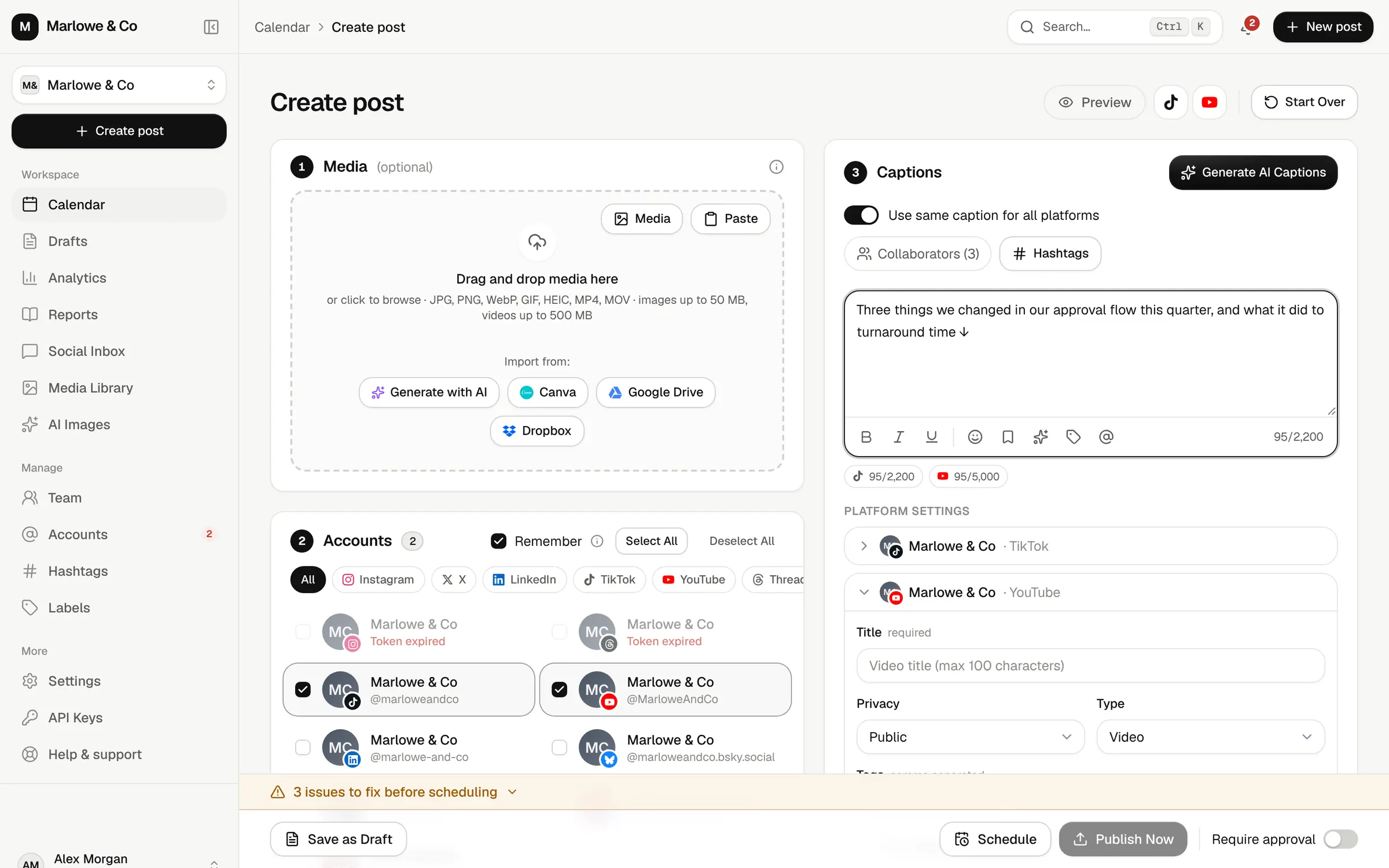
YouTube's title, privacy and type sit in the composer's Platform settings, next to the other platforms you post the same video to.
YouTube upload limits#
| Post type | What it takes | Thumbnail | Videos |
|---|---|---|---|
| Video | 1 video, plus an optional custom thumbnail | JPEG or PNG, up to 2 MB | MP4, MOV, WebM, MKV or AVI, up to 12 hours, up to 256 GB |
| Short | 1 video, plus an optional custom thumbnail | JPEG or PNG, up to 2 MB | MP4, MOV, WebM, MKV or AVI, up to 3 minutes, up to 256 GB, vertical or square |
| What | Limit |
|---|---|
| Description | 5,000 bytes. Counted in bytes: accented letters take 2, emoji 4. |
| Title | 100 characters |
| First comment | 10,000 characters |
| Tags | 500 characters for all tags together |
YouTube only takes videos over 15 minutes from verified channels (youtube.com/verify). (YouTube Help, as of November 2026)
Videos or Shorts?#
YouTube treats square or vertical videos of up to three minutes as Shorts (YouTube Help, as of November 2026). In HeyOrbit, choose Short as the post type for those: Shorts must be vertical or square and up to 3 minutes. A horizontal or longer video is a regular video, which can run up to 12 hours.
Common mistakes and the errors they cause#
- No title. YouTube requires one, up to 100 characters. In bulk scheduling, HeyOrbit takes it from the first line of the caption when you leave it empty.
- A description that's too long in bytes. The 5,000 bytes limit counts bytes, not characters: accented letters take 2 and emoji 4, so a description full of emoji runs out early.
- Hashtag overload. YouTube ignores every hashtag in a description that has more than 60. Keep a few relevant ones.
- Tags over the limit. All tags together get 500 characters, commas included, and a tag with a space counts its quotes.
- A landscape video as a Short. Shorts must be vertical or square. Post a horizontal clip as a regular video, or reframe it.
- Expecting a pinned comment. HeyOrbit posts a first comment from your channel when the video goes live, but YouTube doesn't let apps pin it. Pin it in YouTube Studio.
- Unverified channel. Custom thumbnails and uploads over 15 minutes need a verified channel (YouTube Help, as of November 2026).
FAQ
Can I schedule YouTube Shorts?
Yes. In YouTube Studio, Shorts use the same Schedule option as other videos. In HeyOrbit, choose Short as the post type and upload a vertical or square video of up to three minutes.
How far ahead can I schedule a YouTube video?
In HeyOrbit there is no limit: the upload waits on the calendar until its time. Plan around YouTube's processing time for long or large files by scheduling a little ahead of your announced release.
Can I schedule a YouTube Premiere from HeyOrbit?
No. Premieres are set up in YouTube Studio, which also schedules them (as of November 2026). HeyOrbit publishes regular videos and Shorts at the scheduled time.
Does HeyOrbit add end screens and cards?
No. YouTube's API doesn't support them, so add end screens and cards in YouTube Studio after the video is up.
Can I reply to YouTube comments from HeyOrbit?
Yes. Comments on your videos and Shorts arrive in the social inbox, where your team can reply, assign and label them.
Sources
Platform features change. Every outside fact in this guide links to the official page, checked on the date shown.
- YouTube Help: Schedule video publish timeChecked November 23, 2026
- YouTube Help: Premiere a new videoChecked November 23, 2026
- YouTube Help: Understand three-minute YouTube ShortsChecked November 23, 2026
- YouTube Help: Upload videos longer than 15 minutesChecked November 23, 2026
- YouTube Help: See and unlock features with phone verificationChecked November 23, 2026
Keep reading
- Planning and cross-postingHow to repurpose one video for Reels, Shorts and TikTokEdit once for Instagram Reels, YouTube Shorts, TikTok and Facebook Reels: the one export that fits all four, the limits that differ, step by step.
- Scheduling, platform by platformHow to schedule TikTok videos and photo postsSchedule TikTok videos and photo posts in TikTok Studio or HeyOrbit: privacy and Duet settings, real file limits, and why sounds can't be added.
- Planning and cross-postingHow to plan a month of social media content in a dayPlan a month of social media posts in one focused day: review last month, map key dates, theme each slot, batch-create posts and schedule in one go.
- Analytics and reportingSocial media metrics that matter on each platformWhich metrics to track on Instagram, TikTok, X, YouTube, LinkedIn, Pinterest, Google Business Profile and more, and what each one tells you.
In the help centre